Importing payroll from Gusto, ADP or Paychex
Import your real payroll into WiseCost from a Gusto, ADP or Paychex CSV or XLSX file. Columns are detected, amounts are editable, and gross replaces pay.
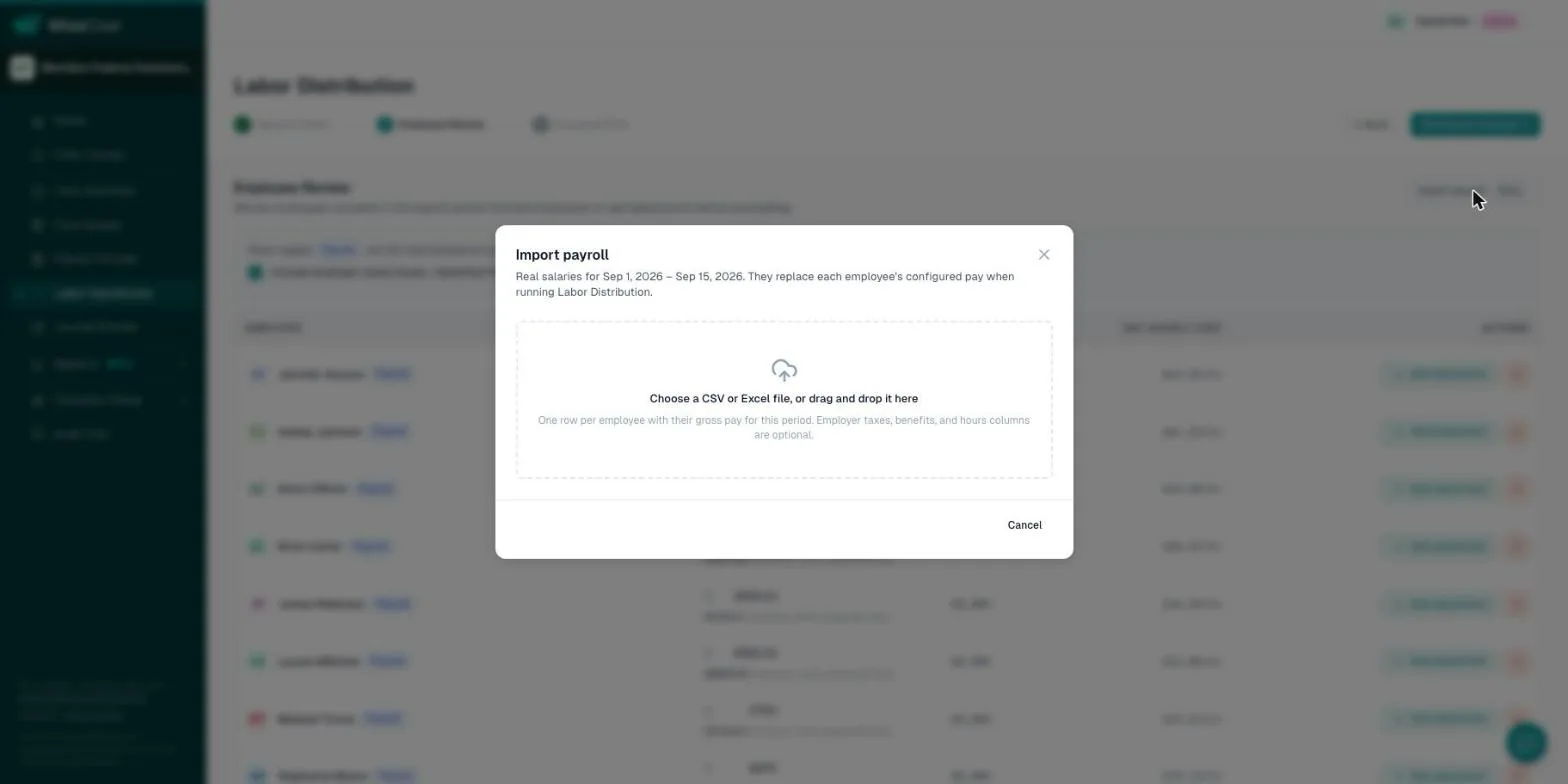
To use your real payroll in labor distribution, import it in WiseCost. In Labor Distribution, on the Employee Review step, click Import payroll, upload the CSV or XLSX export from Gusto, ADP or Paychex, confirm the detected columns, review the amounts and import. The imported gross pay replaces each salaried employee's configured pay per period for that period.
Who can do this: an Administrator.
Before you start
- Export the payroll register of the period from your payroll provider, as CSV or XLSX.
- Have the period ready in Labor Distribution. See Running Labor Distribution in WiseCost.
1. Upload the file
- Open Labor Distribution and click Review & Adjust on the period.
- On the Employee Review step, click Import payroll.
- Upload the CSV or XLSX file.
2. Confirm the columns
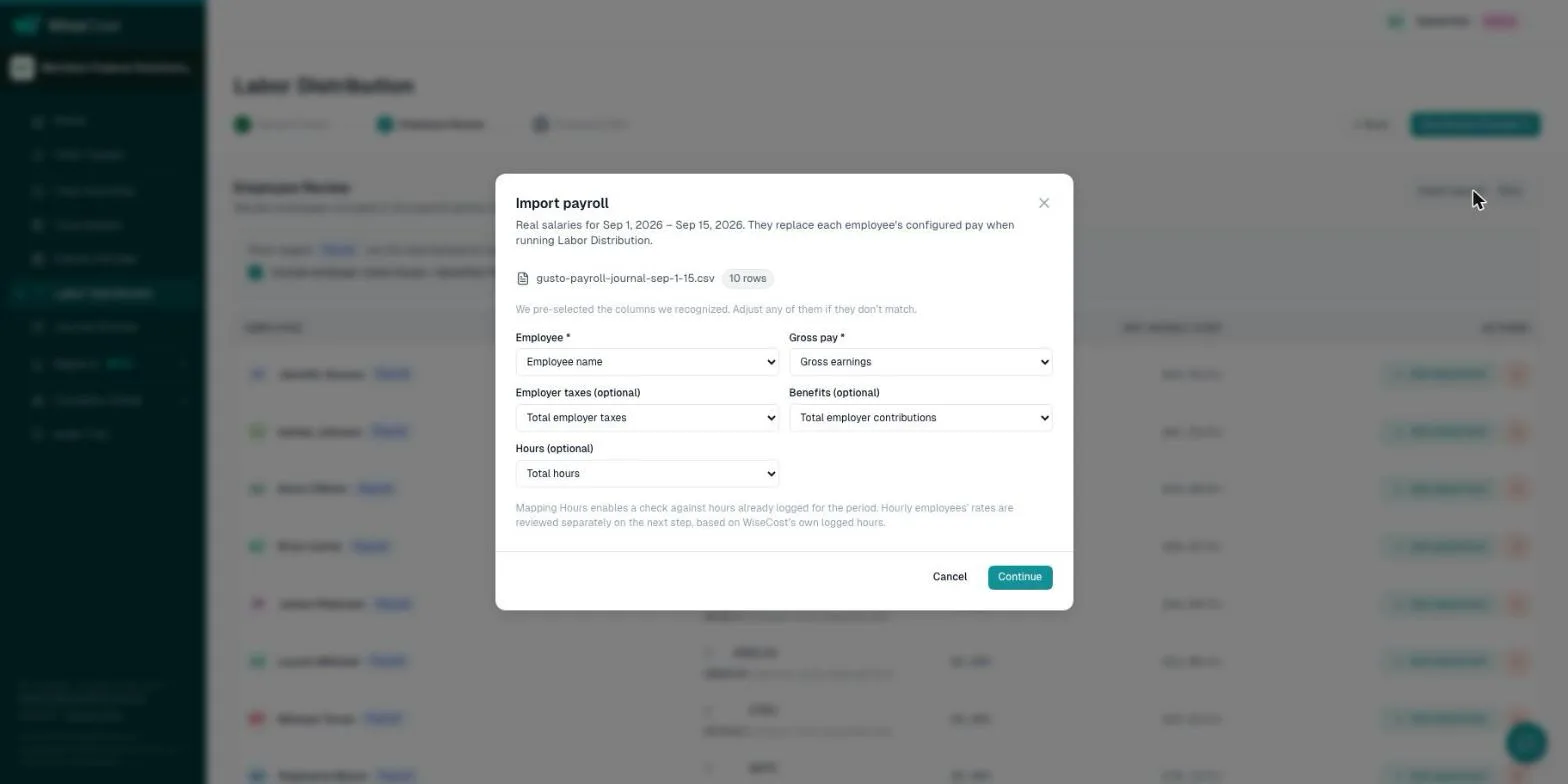
WiseCost detects which columns hold the employee, their payroll ID, the gross pay, the employer taxes, the benefits, the bonuses and the hours. A line above the fields says whether it recognized the provider's file ("Rippling Payroll Journal recognized. Columns mapped automatically."). Check the mapping and correct any column it got wrong; the i icon next to each field explains what it is for. Under Advanced are the base pay amount and base pay hours (the regular pay of each person and the hours it paid for, such as Rippling's "Base Pay (amount USD)" and "Base Pay (hours)", or "Regular Earnings" and "Regular Hours" in other providers), pre-selected when the provider is recognized. Map the Employee ID column whenever the file has one (Rippling Emp No, ADP Associate ID, Paychex Worker ID...): each row is then matched to the person whose payroll ID in Company Setup → Employees is the same, which is surer than a name. A row whose ID no employee has is left for you to review rather than matched by name; the name only decides when the ID cell is blank or the file has no ID column. A field can take several columns: when a file splits one person's pay across columns (base pay, paid time off, sick leave...), pick all of them and WiseCost adds them up for each row. The Bonus field takes every bonus column (pre-selected for Rippling): gross pay excludes them, and each becomes its own line in Labor Distribution. See Employer taxes, benefits and adjustments.
If the file is Rippling's Payroll Journal (the report of a processed pay run) or its pay-run template, WiseCost recognizes it and maps every column at once. Prefer the Payroll Journal: it carries the gross, the employer taxes and the employer contributions, and WiseCost leaves out the "Total" row the journal repeats for each person. The pay-run template has no employer taxes, because Rippling computes them when the pay run is processed.
3. Review and import
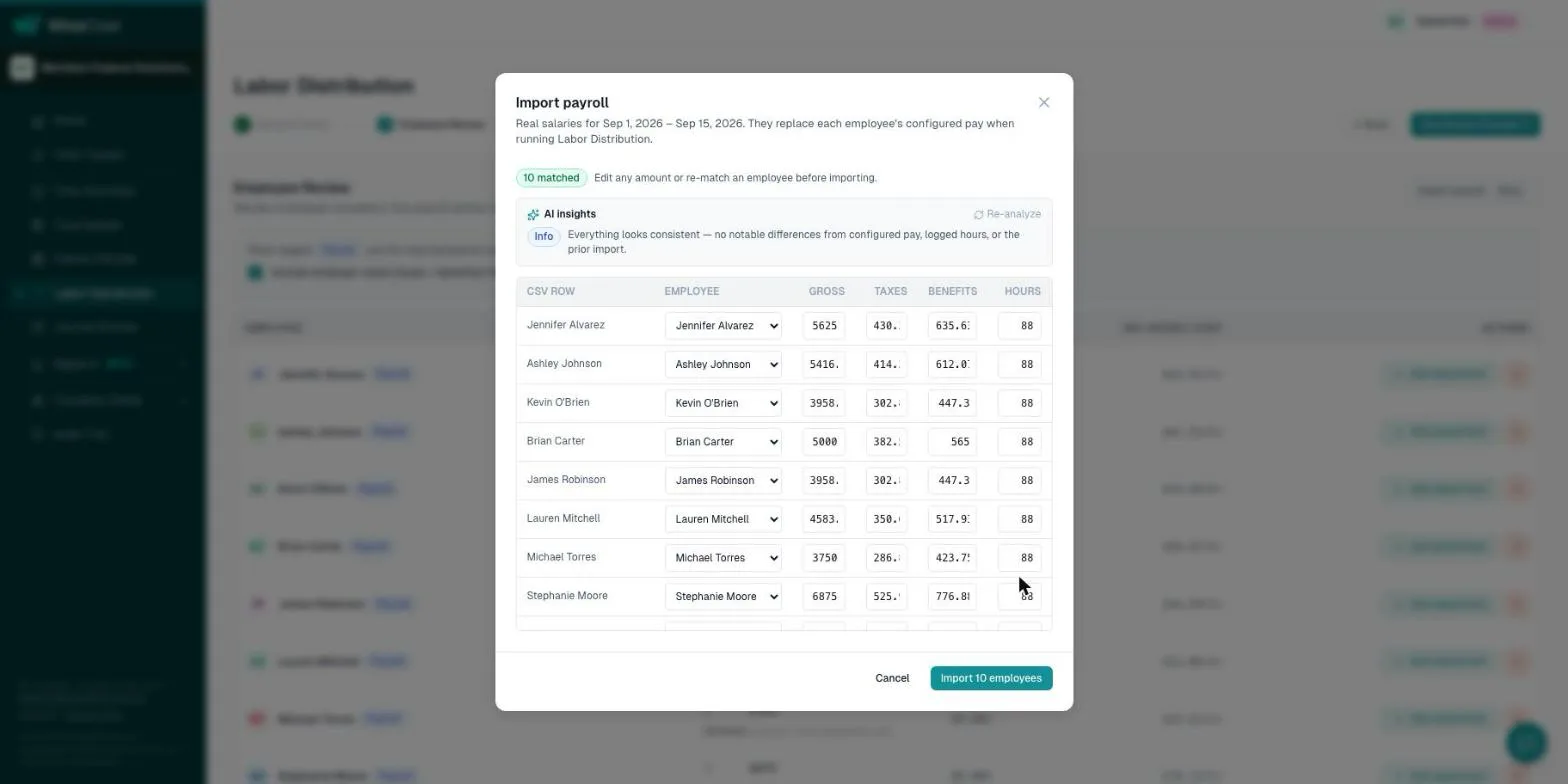
- Check that every row of the file is matched to the right employee. Each row says how it was matched: Matched by ID, Matched by name, or Matched by hand once you pick someone. A row marked Needs review carries a payroll ID that no employee in WiseCost has: pick the employee in that row, or set their payroll ID in Company Setup → Employees and import again. Left as it is, the row is skipped.
- When the file has more than one row for the same person (one per project or shift), WiseCost combines them into one row and says what it did under the name: earnings and hours are added up, and an employer contribution that the file repeats on every row is counted once.
- A person the file carries with no pay at all is skipped by default. Pick them in the row if you do want to import a zero.
- Edit any amount that needs it. The preview is editable.
- For each hourly employee, check the Hourly rate column. It is the file's base pay amount divided by its base pay hours, so a bonus, paid time off or a reimbursement in the same period never changes the configured rate. When the file has no base pay and hours for a person (or those columns are not mapped), the rate is left blank, nothing is updated, and the row says why. Importing writes the rate to the employee's configuration, which prices periods that have no imported payroll.
- When the file has an Hours column, each row is checked against the hours logged in WiseCost for the period. A difference of more than 5% is marked on the row ("Hours differ") and listed above the table; a salaried employee the file carries with no hours is not flagged. The check never blocks the import: it tells you where the file and the timesheets disagree.
- Read the AI insights. They point out things worth a second look, such as a difference against configured pay, logged hours or the previous import. They are advisory only and never change a number.
- Click the import button.
What happens next
Back on Employee Review, the imported employees carry a Payroll tag. For those rows, WiseCost uses the imported gross for this period instead of the employee's configured pay. Editing their pay on that screen updates the imported record.
The employer taxes and benefits in the file are not mixed into direct labor. You can include them as separate lines. See Employer taxes, benefits and adjustments.
Common questions
How do I import Gusto, ADP or Paychex payroll for labor distribution?
Export the period's payroll as CSV or XLSX, then use Import payroll on the Employee Review step of Labor Distribution. WiseCost detects the columns and lets you review every amount before importing.
Does the import change the pay configured on my employees?
The imported gross applies to that payroll period only; the pay per period on a salaried employee stays as it is for other periods. For an hourly employee, the import does update the configured hourly rate, read from the file's base pay amount divided by its base pay hours (regular pay only). You see and can edit that rate on the review step before importing, and a blank rate changes nothing.
How do I undo an import?
On Employee Review, click Remove imported payroll. It deletes the period's payroll records (the imported amounts and any manual ones), with their bonuses and benefit components, and every row goes back to the employee's configured pay. The removal is recorded in the audit trail, and the employee configuration (including an hourly rate the import updated) is not changed. Import again whenever you want.
Does the AI change my numbers?
No. The AI insights are observations for you to review. Only you edit amounts.
My provider is not Gusto, ADP or Paychex. Can I still import?
The import reads CSV and XLSX and lets you correct the column mapping. If your file does not map, write to support@usewisecost.com.